


Every Java Edition skin lives at a permanent address on Mojang's texture server, and the game never shows it to you. You need that address when a server's /skin url command asks for a link, when a mod wants a texture instead of a username, or when you want a copy of a skin before the player changes it. There are three ways to get it. Which one you use depends on whether you know the player's username or the skin's hash, or only have the PNG.
Quick answer
The URL format hasn't changed since Mojang moved skins to textures.minecraft.net in 2014.
What a Minecraft skin URL actually is
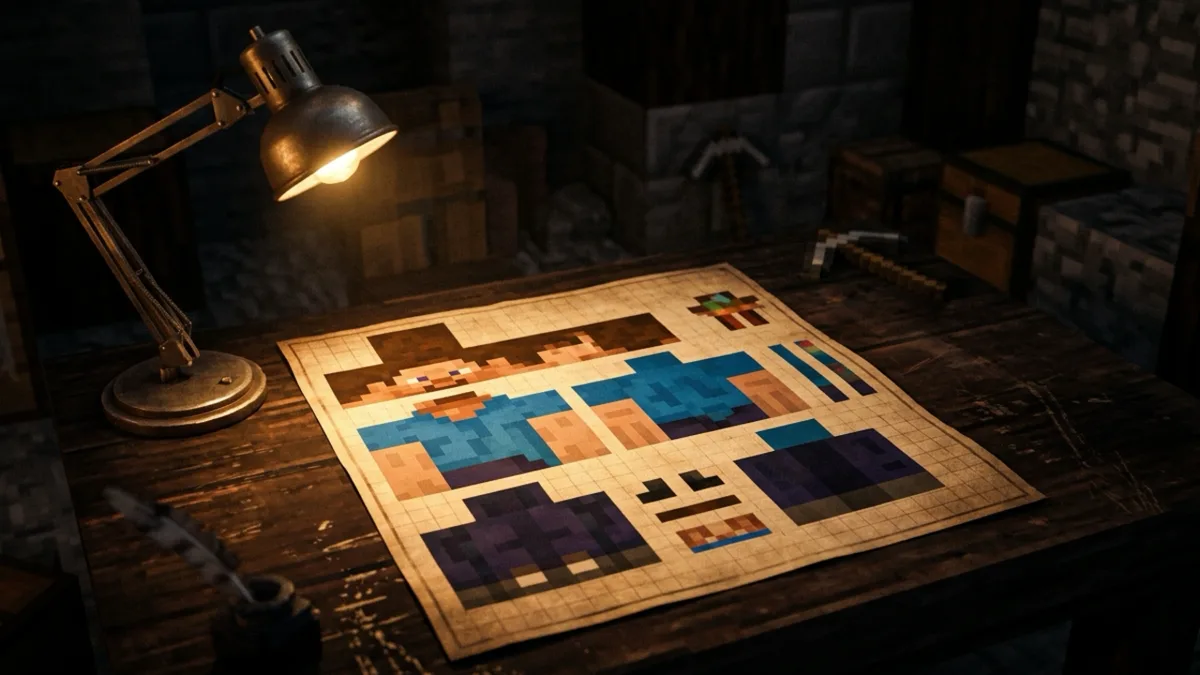
A skin URL points to a 64×64 PNG on textures.minecraft.net. The last part of the link is a 64-character SHA-256 hash of the image. Two players wearing the same file share one URL, and re-uploading an identical PNG gives you the same hash back. Mojang's own data links the image over plain HTTP, but HTTPS works as well.
The URL won't tell you which arm model the skin uses, and it won't tell you who's wearing it. The model, classic 4-pixel arms or slim 3-pixel arms, is a separate flag in the player's profile. That's why you want the API route below if you're feeding the skin into a mod or renderer.
Method 1: from a username, with Crafty
Use this one when you saw a skin on a server and want it.
- Search the username on Crafty's player search.
- On the profile, the skin viewer shows the current skin. Click through to the skin's own page. The address looks like
crafty.gg/skins/542cde2d…, and that 64-character string is the texture hash. - Put
https://textures.minecraft.net/texture/in front of the hash. That's the skin URL. - If all you want is the file, the skin page has a Download PNG button that saves the same texture, and you can skip the URL entirely.
Crafty keeps every skin a player has worn, so this works for old skins too. Open the history on the profile, pick the one you want and copy its hash the same way. The skin history guide goes through that in detail.
Method 2: from a UUID, with the Mojang API
Go this way when you're scripting, or when you also need the slim/classic flag.
- Turn the name into a UUID.
GET https://api.mojang.com/users/profiles/minecraft/<username>returns{"id": "...", "name": "..."}. Skip this step if you already have the UUID from a Crafty profile. - Fetch the profile with
GET https://sessionserver.mojang.com/session/minecraft/profile/<uuid>. - In the response,
properties[0].valueis a Base64 string. Decode it and you get:
{
  "timestamp": 1653838459263,
  "profileId": "8af6c50833d54861b5c2dce1c16c6fae",
  "profileName": "Wemmbu",
  "textures": {
    "SKIN": {
      "url": "http://textures.minecraft.net/texture/542cde2d44ae49d0543a3c432804a8108119f6fd8955d03ac4bd23ef6da8db9b",
      "metadata": { "model": "slim" }
    }
  }
}
textures.SKIN.url is the skin URL. If metadata.model is "slim", the player uses the Alex arms. If there's no metadata key at all, it's the classic Steve model. A CAPE entry shows up next to SKIN only when the player has a cape equipped.
Mojang rate-limits these endpoints. The Minecraft Wiki's API page puts the name lookup at roughly 200 requests per 2 minutes per IP and the session server at around 400 per 10 seconds, and the name endpoint throws the odd random 403. If you're doing more than a handful of lookups, cache the result. The profile only changes when the player changes skin.
Method 3: you only have the PNG
A PNG on your disk has no URL until Mojang stores it. Upload it as your own skin through the launcher's Skins tab or your profile on minecraft.net, give it a minute to propagate, then run Method 1 on your own username. Mojang derives the hash from the file, so anyone who uploads the exact same PNG gets the same link.
Don't want to change your skin just to get a link? Preview the file in Crafty's skin viewer instead. It renders any local PNG in 3D without uploading it anywhere.
Where the URL is useful
- Server skin plugins. SkinsRestorer and similar plugins accept
/skin url <link>on servers that run in offline mode or let you wear a skin that isn't on your account. Some insist the link ends in.png. The textures.minecraft.net links don't, so if the plugin rejects yours, grab the Crafty download and host the file yourself. - Renderers and mods. Anything that draws a player model from a texture needs the URL plus the model flag from Method 2.
- Archiving. Players change skins, and the old ones drop off their profile. The URL keeps working as long as at least one profile still references the hash, so if you care about a skin, save the PNG.
FAQ
Do Bedrock Edition skins have a URL?
No. Bedrock stores skins against the Xbox account and serves them through Xbox Live, with no public texture server, so there's nothing to link to. If a Bedrock player joins a Java server through Geyser, the server may upload a converted copy to a Java-side profile, and that copy gets a normal textures.minecraft.net URL.
Why does my skin URL start with http and not https?
Mojang's profile data has always written the link with plain http://. The server answers on https:// too, so either one works. Most plugins and tools take both. If one refuses the link, swap the scheme before you decide the hash is wrong.
Can I get the skin URL of a player who is offline or banned?
Yes, as long as the account still exists. The session server returns the profile for any valid UUID whether the player is online or not, and Crafty keeps the skin history after the player moves on to a new skin. Deleted accounts return nothing.
Is the hash the same for every player wearing the skin?
Yes. The hash comes from the PNG, so identical files map to identical URLs. Popular public skins show dozens of wearers on their Crafty skin page for exactly this reason. They all uploaded the same image, and Mojang deduplicated it.